

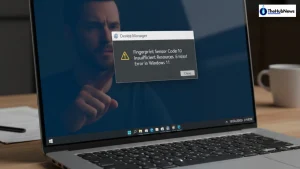
Windows 11 brings many great features to your laptop. One of the best is Windows Hello. It lets you sign in with your fingerprint in less than a second. But sometimes, things go wrong with the hardware. You might see a yellow triangle in the Device Manager. The error message says “This device cannot start (Code 10).” It also mentions “insufficient system resources.”
This error is very frustrating for users. It stops you from using your biometric login. You have to type your long password or PIN every time. This guide will help you to solve this problem quickly. We have used simple steps that work on most laptops and PCs. We will walk through every fix, from easy updates to deeper system repairs.
What is the Code 10 Error?
The Code 10 error is a generic driver issue in Windows. This usually means that the driver is not able to communicate with the hardware module. In Windows 11, it often happens right after a system update. The system thinks it ran out of “resources” like memory or power. Most of the time, the sensor hardware is actually fine. The software bridge is completely confused.
Quick Facts about Code 10 Errors:
- It often happens on Goodix or Synaptics sensors.
- It is usually a software glitch, not a broken part.
- The error can vanish and return after a reboot.
- It affects laptops from Dell, HP, Lenovo, and ASUS.
Step 1: Check for Windows Updates
Microsoft often releases patches for hardware-related bugs. First of all, you need to check the latest update.
- Press Windows Key + I to open Settings.
- Click on Windows Update in the sidebar.
- Click the Check for updates
- If updates appear, install them and restart your PC.
Check the Advanced options menu too. Look for Optional updates. Driver updates for fingerprint readers are often hidden there. These are not installed by default. You must select them manually to get the latest fixes.
Step 2: Update the Biometric Driver
The driver acts as a bridge between Windows and your sensors. If it is old, the bridge breaks. You need the latest version for best results.
- Right-click the Start button and pick Device Manager.
- Find the Biometric devices section and click the arrow.
- Right-click your fingerprint sensor (e.g., Goodix or Synaptics).
- Choose Update driver.
- Select Search automatically for drivers.
If Windows finds nothing, visit your laptop maker’s website. Search for your specific model name. Look for the “Biometric” or “Fingerprint” driver download. Using the driver from the manufacturer is always safer than generic ones.
Step 3: Roll Back the Driver
Did the error start after a recent update? The new driver might have a bug. You can go back to the old version that worked.
- Open Device Manager.
- Right-click your fingerprint sensor and pick Properties.
- Go to the Driver
- Click Roll Back Driver if the button is active.
- Restart your computer and test the sensor.
Step 4: Reinstall the Device Fully
Sometimes the driver files get corrupted on your hard drive. A fresh start helps clear out the bad files.
- Go back to Device Manager.
- Right-click the fingerprint reader.
- Select Uninstall device.
- Check the box that says Attempt to remove the driver for this device.
- Click Uninstall.
- Restart your PC. Windows will try to reinstall a clean driver on its own.
Step 5: Adjust Power Management Settings
Windows 11 tries to save battery life at all times. It often turns off hardware to save power. This can trigger the Code 10 error when the sensor wakes up.
- Open Device Manager.
- Right-click your fingerprint sensor and click Properties.
- Look for a Power Management (If you do not see it, your PC may not allow this change).
- Uncheck Allow the computer to turn off this device to save power.
- Click OK and restart. This keeps the sensor ready for use.
Step 6: Fix the Biometric Service
A background service runs your fingerprint reader. If it stops or crashes, the sensor fails to start.
- Press Windows Key + R.
- Type msc and hit Enter.
- Find Windows Biometric Service in the list.
- Right-click it and choose Restart.
- Double-click it and set the Startup type to Automatic.
- Click Apply and then OK.
Step 7: Reset the Fingerprint Database
Sometimes the problem arises due to the saved fingerprint data. You can fix it by clearing the cache.
- Open msc again.
- Stop the Windows Biometric Service.
- Open File Explorer.
- Go to C:\Windows\System32\WinBioDatabase.
- Copy these files to a folder on your desktop as a backup.
- Delete the files inside the WinBioDatabase
- Start the Windows Biometric Service
- Go to Settings > Accounts > Sign-in options to set up your finger again.
Step 8: BIOS and Chipset Updates
The fingerprint sensor talks to the motherboard. If the motherboard software is old, it causes errors.
- BIOS Updates: Visit your PC maker’s support page. Download the BIOS update tool.
- Chipset Drivers: Look for “Chipset” or “Serial IO” drivers. These help the CPU manage hardware resources.
- Caution: Keep your laptop plugged into power during BIOS updates. If it shuts off, it could break the PC.
Step 9: Use the Hardware Troubleshooter
Windows has built-in tools to find hardware problems. They can fix resource conflicts for you.
- Press Windows Key + S.
- Type cmd.
- Right-click Command Prompt and run as administrator.
- Type exe -id DeviceDiagnostic and press Enter.
- Follow the steps on the screen to fix any detected issues.
Step 10: Perform a Clean Boot
A third-party app might be stealing resources from your sensor. A clean boot starts Windows with only the basic features.
- Type msconfig in the search bar and hit Enter.
- Go to the Services
- Check Hide all Microsoft services.
- Click Disable all.
- Go to the Startup tab and open Task Manager.
- Disable all startup items.
- Restart your PC. If the fingerprint works, one of your apps was the problem.
Step 11: Check Local Group Policy
If you’re using Windows 11 Pro, there may be a setting blocking biometrics.
- Press Windows Key + R, type msc, and hit Enter.
- Go to Computer Configuration > Administrative Templates > Windows Components > Biometrics.
- Make sure that the permission to use biometrics is set to Enabled.
- Select the option to allow users to log on using biometrics.
Step 12: Check for Hardware Damage
If none of these steps work, the sensor might be broken physically.
Signs of Hardware Failure:
- Visible Scratches: A deep scratch can ruin the scanning surface.
- Water Damage: Spilling liquid near the sensor can short it out.
- Heat Issues: If the laptop gets too hot, the sensor module might fail.
- Disconnected Cable: Sometimes the internal ribbon cable comes loose.
You might need to contact a repair shop if the software fixes fail. If your laptop is under warranty, call the maker. They can replace the palm rest or the sensor module for free.
Why This Error Happens (The Technical Side)
The “Insufficient Resources” tag usually points to a “Memory Range” conflict. This happens when two pieces of hardware try to use the same spot in your RAM. Windows 11 is usually good at managing this. However, messy drivers can cause overlaps. By updating the chipset and BIOS, you help Windows map these resources better.
Final Tips for a Healthy Sensor
- Keep it Clean: Use a soft cloth to wipe the sensor once a week. Skin oils can block the read.
- Avoid Registry Cleaners: These apps often delete vital biometric keys.
- Use One Finger: Do not register the same finger twice. It can confuse the matching logic.
- Check Windows Updates Weekly: Most fixes come through official channels.
Fixing the “Insufficient Resources” error takes some time. Usually, a driver reinstalls or a power setting change fixes it. Avoid using third-party “driver fix” apps found on the web. These often contain ads or malware. Stick to official drivers from your PC manufacturer like Dell, HP, or Lenovo.
By following these steps, you should get your fingerprint login back. It is the fastest and most secure way to enter your Windows 11 device.